

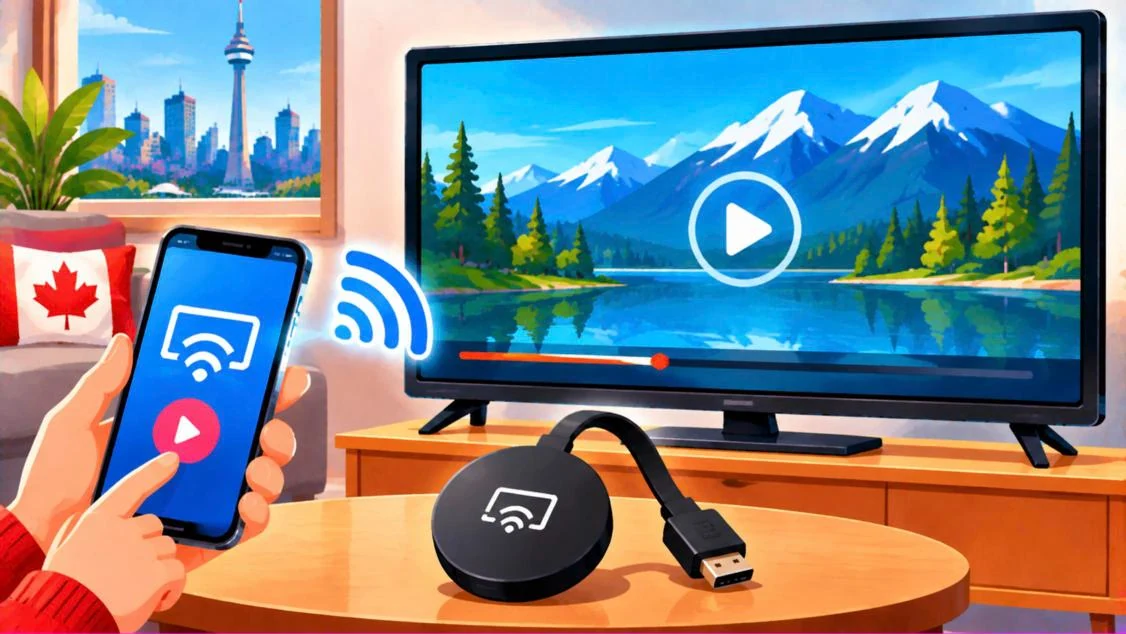
There are two kinds of Chromecast and two ways to watch IPTV on them: on a Chromecast with Google TV you install a player like TiviMate or IPTV Smarters straight from the Play Store, while on an older “cast-only” Chromecast you cast IPTV from your phone or computer. The newer Chromecast with Google TV is effectively a small Android TV device and one of the best-value IPTV streamers going; the older dongles are more limited. This guide covers both, step by step, and how to get the smoothest result.
Key takeaways
- Chromecast with Google TV runs IPTV apps directly from the Play Store — no casting needed.
- Older cast-only Chromecasts rely on casting IPTV from a phone or PC.
- TiviMate and IPTV Smarters both run on Chromecast with Google TV.
- For the best live TV, use a wired connection where possible and strong Wi-Fi otherwise.
Which Chromecast do you have?
This matters, because the two types work completely differently for IPTV. The Chromecast with Google TV (the model with its own remote and on-screen interface) is a full Android TV / Google TV device — you install apps on it directly, just like an Android box. The older cast-only Chromecast (a plain dongle with no remote) has no interface of its own; it only receives content “cast” from another device. Check which you have before following the steps, since the setup is different for each.
IPTV on a Chromecast with Google TV
If you have the Google TV model, you’re in luck — it’s one of the best-value IPTV devices available. Setup is the same as any Android TV box: open the Google Play Store on the device, install a player like TiviMate or IPTV Smarters, open it, and log in with your M3U or Xtream Codes details. The channels load and you’re watching, with a full program guide and favourites. No casting or sideloading required. Our Android TV box guide and TiviMate guide apply directly, since the Chromecast with Google TV runs the same software.
IPTV on an older cast-only Chromecast
With a plain cast-only Chromecast, you can’t install apps on the dongle itself — instead you run an IPTV player on your phone or computer and cast it to the TV. Open a cast-capable IPTV app on your Android phone (or a compatible player), start a channel, and tap the Cast button to send it to your Chromecast. The dongle then displays the stream on your TV while your phone acts as the remote. It works, but it ties up your phone and can add a little lag, so it’s more of a workaround than an ideal setup. If you watch a lot of IPTV, the Google TV model or an Android box is a big step up.
What you need before you start
For either type, have your Chromecast connected to the TV and internet, and your IPTV login to hand — an M3U URL or Xtream Codes. For the Google TV model you’ll also want to be signed into a Google account for the Play Store; for the cast-only type you’ll need a cast-capable IPTV app on your phone. If you’re unsure which login type you have, our guide to M3U and Xtream Codes explains both.
Step by step: Chromecast with Google TV
Connect the device and sign into your Google account. Open the Play Store and install TiviMate or IPTV Smarters. Open the app and choose your login type — enter your Xtream Codes (server, username, password) or paste your M3U URL. Let the channels, VOD and series load, then set the program guide to your correct time zone and build a favourites list. That’s it — about ten minutes, and no different from setting up an Android box.
Step by step: casting from a phone
Make sure your phone and the Chromecast are on the same Wi-Fi network. Open a cast-capable IPTV player on your phone and log in with your details. Start playing a channel, then tap the Cast icon and select your Chromecast. The stream appears on the TV. Keep your phone plugged in for longer sessions, and stay on strong Wi-Fi to reduce lag. Remember this ties up the phone you’re casting from, so it’s best for occasional viewing rather than a main setup.
Getting the smoothest live TV
As with any device, a stable connection is the key to buffer-free IPTV. The Chromecast with Google TV supports an Ethernet adapter — use one on your main TV for the best live-sport experience; otherwise keep it on strong 5 GHz Wi-Fi near the router. For casting, both the phone and the Chromecast should be on the same 5 GHz network to minimise lag. Match stream quality to your connection and give your plan headroom if other devices are active. Our buffering guide covers the fixes if you hit problems.
Common problems and fixes
Most issues are straightforward. On the Google TV model, a login failure usually means a typo or the wrong login type in the field; no channels means checking your subscription is active; an empty guide means adding the EPG URL or using the Xtream login. For casting, cast won’t connect is nearly always a network mismatch — put both devices on the same Wi-Fi — and lag improves on 5 GHz with background apps closed. Buffering on either is a connection issue. See our troubleshooting guide for more.
Which approach is best?
If you’re buying new, the Chromecast with Google TV is the clear choice — it’s inexpensive, runs IPTV apps natively, and performs like a small Android box, making casting unnecessary. If you already own an older cast-only Chromecast, casting from your phone works for occasional viewing, but for regular use you’ll be much happier upgrading to the Google TV model or an Android box. In short: native app = great; casting = fine as a stopgap.
Chromecast with Google TV vs other devices
The Chromecast with Google TV deserves consideration against the other budget IPTV devices because it’s genuinely one of the best value options. Compared with a Firestick, it runs the same kinds of apps but often feels a touch more polished thanks to the Google TV interface, and because it’s a true Android TV device, TiviMate and IPTV Smarters install straight from the Play Store with no sideloading — a small but real convenience over the Firestick’s Downloader step. Against a dedicated Android box, it’s cheaper and smaller but has less raw power and storage, so a heavy user with enormous channel lists might prefer a box. For the typical household, though, the Chromecast with Google TV hits a sweet spot of price, simplicity and performance that’s hard to beat, which is why it’s such a common recommendation for IPTV in Canada. Our IPTV box guide puts it in context with the alternatives.
Making casting reliable
If you’re sticking with the casting approach on an older Chromecast, a few habits make it far more dependable. Keep both your phone and the Chromecast on the same 5 GHz Wi-Fi network, as mismatched networks are the number-one reason casting fails to connect. Close other apps on your phone before casting so it has the resources to decode and send the stream smoothly, and keep the phone plugged in, since casting live TV drains the battery quickly. Avoid taking calls or using data-heavy apps on the phone mid-cast, which can interrupt the stream. And position your router centrally so both devices get a strong signal. Casting will never be quite as seamless as a native app, but with these steps it becomes reliable enough for regular viewing — though if you find yourself fighting it often, that’s the sign it’s time to move up to the Google TV model.
Keeping it legitimate
As with any device, the player and the Chromecast are just tools — what matters legally and for reliability is the service behind them. Use a subscription from a reputable provider and enter your details only into genuine apps, avoiding “free” shared playlists and codes that are unstable and tied to pirated content. On the Google TV model, installing from the Play Store keeps you to legitimate apps automatically. Our guide to licensed vs unlicensed IPTV explains how to choose a service that’s both legal and dependable, which matters far more to your experience than which Chromecast you own.
Bottom line
How you watch IPTV on a Chromecast depends on the model: on a Chromecast with Google TV, install TiviMate or IPTV Smarters from the Play Store and log in — it’s an excellent, cheap IPTV device; on an older cast-only Chromecast, cast IPTV from your phone as a workaround. Wire or use strong Wi-Fi, and you’ll have smooth live TV. To test a service on your Chromecast, TVNow offers a 24-hour free trial.
Frequently asked questions
Can I watch IPTV on a Chromecast?
Yes. On a Chromecast with Google TV, install a player from the Play Store; on an older cast-only Chromecast, cast IPTV from your phone or PC.
How do I set up IPTV on a Chromecast with Google TV?
Install TiviMate or IPTV Smarters from the Play Store, open it, and log in with your M3U or Xtream Codes details — same as an Android box.
How do I cast IPTV to an older Chromecast?
Run a cast-capable IPTV app on your phone on the same Wi-Fi, play a channel, and tap the Cast icon to send it to the Chromecast.
Is the Chromecast with Google TV good for IPTV?
Yes — it’s effectively a small Android TV device, runs the main IPTV apps natively, and is excellent value.
Why won’t my Chromecast cast IPTV?
Usually the phone and Chromecast aren’t on the same Wi-Fi network. Put both on the same network, ideally 5 GHz, and try again.
Do I need to cast if I have Google TV?
No. The Chromecast with Google TV installs IPTV apps directly, so there’s no need to cast from another device.







