

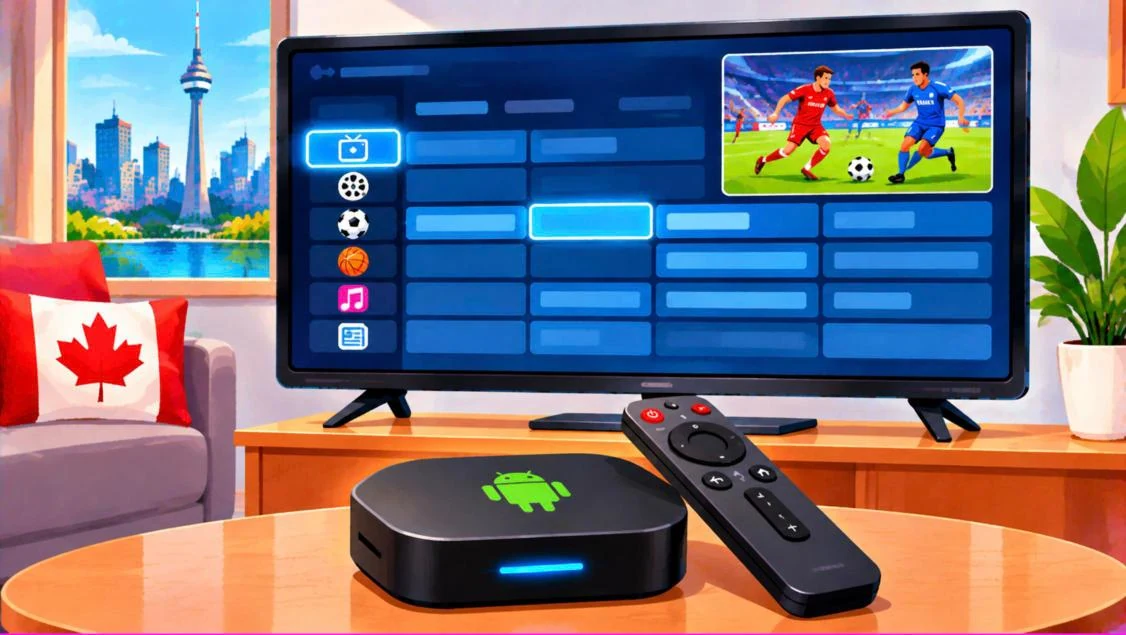
To set up IPTV on a BuzzTV box, open its built-in BuzzTV player, add your subscription as an Xtream Codes login, M3U playlist or portal, and your channels load with a guide — or install TiviMate or IPTV Smarters from the Play Store instead. BuzzTV makes Android-based set-top boxes built specifically for IPTV, combining Android flexibility with a purpose-built player and remotes designed for live TV. This guide covers setting up a BuzzTV box step by step, using its player, and getting the best performance.
Key takeaways
- BuzzTV boxes run Android with a built-in, IPTV-focused player.
- They support Xtream Codes, M3U and portal connections.
- You can also install TiviMate or IPTV Smarters from the Play Store.
- They’re IPTV-focused boxes offering a cable-like experience at good value.
Why BuzzTV boxes are popular for IPTV
BuzzTV, like Formuler, makes Android set-top boxes aimed squarely at IPTV users. The appeal is the same combination: you get the flexibility of Android — the Play Store, multiple apps, support for different connection types — alongside a dedicated player and a remote designed for channel navigation rather than general streaming. BuzzTV boxes are known for solid value, giving you an IPTV-focused experience without the top-tier price of some premium media players. For someone who treats IPTV as their main TV source and wants a purpose-built box, BuzzTV is a popular middle-ground choice.
What you need before you start
Have your BuzzTV box connected to your TV and internet, and your subscription details ready — Xtream Codes (server, username, password), an M3U URL, or a portal URL, depending on your provider. BuzzTV supports all three, so whatever your provider offers, you’re covered. If you’re unsure which you have, our guide to M3U and Xtream Codes explains the formats.
How to set up IPTV on a BuzzTV box
The built-in player is the simplest route. Open the BuzzTV player from the home screen and choose to add a playlist or portal. Select your connection type — for most people Xtream Codes, entering a name, the server URL, your username and your password; or the M3U option with your playlist URL; or a portal if your provider uses one. Save, and the player loads your channels, VOD and series, pulling in the guide automatically with an Xtream login. Set the guide to your correct time zone and arrange favourites, and you’re watching — usually within about ten minutes.
Using other apps on a BuzzTV box
Because BuzzTV boxes run Android, you’re not tied to the built-in player. If you prefer a different interface, install TiviMate or IPTV Smarters from the Google Play Store and use those instead, logging in the same way. This flexibility means you get BuzzTV’s IPTV-focused hardware with your choice of player — our TiviMate guide covers the enthusiast favourite if you’d rather use it.
Getting the best performance
BuzzTV boxes are capable, so the experience largely comes down to your connection. Use the box’s Ethernet port with a wired connection for the smoothest live sport — it removes the most common cause of buffering. Keep the box’s firmware and your apps updated, and match stream quality to your connection rather than forcing 4K on a weak link. Give your internet headroom if several devices stream at once. With a wired connection and a reliable provider, a BuzzTV box delivers a smooth, cable-like living-room experience — see our buffering guide if you hit issues.
Common problems and fixes
Most issues are quick to resolve. If login fails, re-check the server URL and that you’ve used the right connection type and fields. If channels won’t load, confirm your subscription is active. An empty guide means adding the EPG or using the Xtream login. Buffering is a connection issue — go wired and test your speed. If the built-in player misbehaves, update it or switch to TiviMate or IPTV Smarters to isolate whether it’s the app or the service. For more, see our troubleshooting guide.
BuzzTV vs Formuler vs other boxes
BuzzTV and Formuler are the two best-known IPTV-focused Android box brands, and they’re broadly similar — both offer purpose-built players, good remotes and support for multiple connection types, with specifics varying by model. BuzzTV is often positioned as strong value, while Formuler is frequently seen as the premium option, though both have ranges spanning price points. Against a generic Android box or a Firestick, either gives a more refined, IPTV-oriented experience at a higher price; against a MAG box, both are far more flexible. If you want a dedicated IPTV box and value, BuzzTV is well worth considering — our BuzzTV vs Formuler comparison weighs them directly, and our IPTV box guide covers the wider field.
The BuzzTV range and buying advice
BuzzTV offers several box models at different price and performance levels, from more affordable units to higher-end boxes with faster processors, more memory and better 4K handling. For most households, a current mid-range model with 4K support and an Ethernet port is the sweet spot — smooth performance without overspending. As with any IPTV hardware, buy from a reputable retailer to ensure a genuine unit with proper support, and steer clear of any box advertised as “pre-loaded” or “fully loaded” with channels, which signals pirated content and the legal and security risks that come with it. A clean BuzzTV box paired with a legitimate subscription is the combination you want. Because the box and the subscription are separate purchases, you keep full flexibility over which provider you use and can switch services without changing hardware — one of the advantages of an open Android-based box over a locked appliance.
Getting the most from your BuzzTV box
A little setup makes the box much nicer to live with. Organise your channels into favourite groups so your regular channels are easy to reach, and set the guide to your correct time zone for an accurate schedule. Explore the player’s catch-up and recording features if your box and subscription support them, since they’re handy for shows you miss live. Enable automatic playlist and guide updates so your lineup stays current, and back up your settings once configured so you can restore them quickly on a reset or a second box. These touches transform the default setup into a personalised, cable-like experience — which is the whole reason to choose a dedicated IPTV box over a bare streaming stick in the first place. The hardware is only part of the value; the tailored setup is what you’ll notice every day.
Running IPTV on more than one TV
If you want IPTV throughout the house, a BuzzTV box works well as a main-room device, and you can add cheaper boxes or sticks on secondary TVs. The setup on each follows the same steps, and your subscription’s connection limit determines how many screens can stream simultaneously — a single-connection plan suits one-at-a-time viewing, while a busy household needs a multi-connection plan. A practical approach is to perfect your main BuzzTV box first — favourites, guide, settings — then replicate the essentials on the other devices, using backup and restore where the app supports it. Because your login works across devices regardless of brand, you can mix a BuzzTV box in the living room with a Firestick in the bedroom without any trouble, keeping the premium experience where it matters most and economising elsewhere.
Keeping your BuzzTV box reliable
BuzzTV boxes are low-maintenance once set up, and a few habits keep them running smoothly. Apply firmware updates when BuzzTV releases them, and keep your player app updated too, since updates fix playback and compatibility issues. Use a wired connection on the main TV, restart the box occasionally, and clear app caches if it slows down. Above all, pair the box with a reliable provider that has well-located servers — even the best box can’t compensate for an unstable or distant service. With a genuine BuzzTV box, a legitimate subscription and a solid wired connection, you have a dependable, good-value IPTV setup that should serve you well for years.
Bottom line
A BuzzTV box is an IPTV-focused Android device that’s easy to set up: open the built-in player, add your Xtream, M3U or portal details, and enjoy a cable-like experience — or install TiviMate if you prefer. Wire the Ethernet port, keep it updated, and it’s a strong-value living-room IPTV setup. To test a service on your BuzzTV box, TVNow offers a 24-hour free trial.
Frequently asked questions
How do I set up IPTV on a BuzzTV box?
Open the built-in BuzzTV player, add a playlist or portal, and enter your Xtream Codes, M3U or portal details. The channels and guide then load.
Does a BuzzTV box support Xtream Codes?
Yes — BuzzTV boxes support Xtream Codes, M3U and portal connections, so they work with most providers.
Can I use TiviMate on a BuzzTV box?
Yes. BuzzTV boxes run Android, so you can install TiviMate or IPTV Smarters from the Play Store if you prefer them to the built-in player.
Is BuzzTV better than Formuler?
They’re similar IPTV-focused Android boxes. BuzzTV is often positioned as strong value and Formuler as premium, but both are capable — it comes down to model and budget.
Why is my BuzzTV box buffering?
Usually the connection. Use the Ethernet port, match stream quality to your speed, and give your plan headroom.
Is a BuzzTV box worth it?
For a main IPTV setup, yes — it’s a purpose-built, good-value box. For the cheapest route, a Firestick or basic Android box does the core job.







