

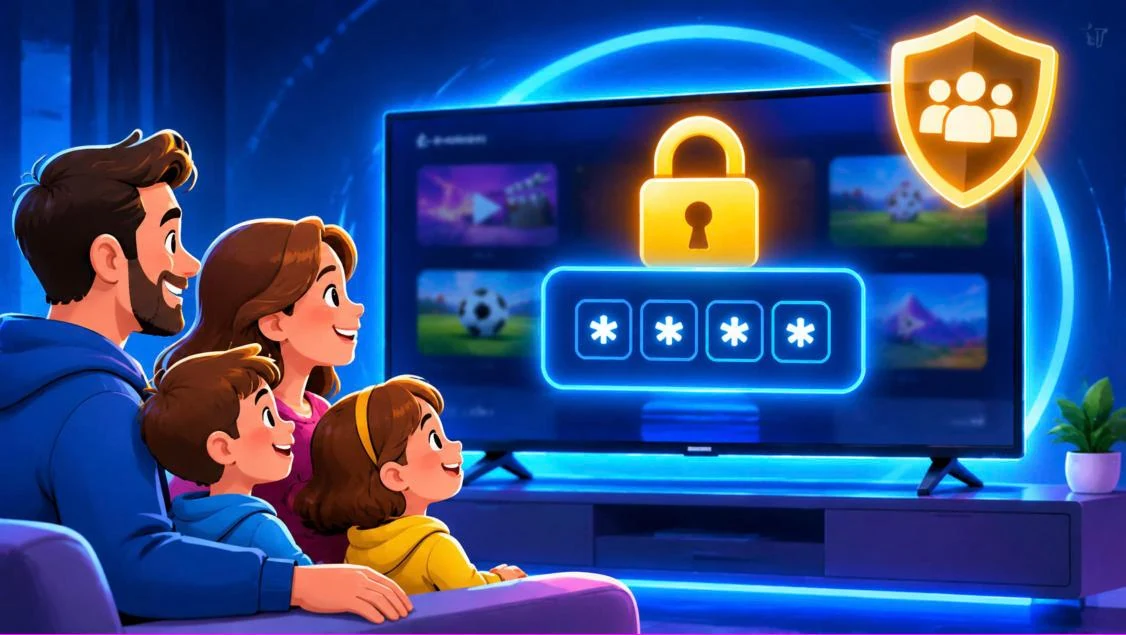
If you’ve got kids in the house, one of the first questions worth asking about any TV setup is how you keep it age-appropriate — and IPTV is no different. The good news is that the major IPTV player apps include parental controls that let you lock channels or whole categories behind a PIN, hide content you’d rather children didn’t stumble onto, and generally keep the experience sensible for a family. This guide explains what controls are available, how to set them up in the common apps, and how to combine them with your streaming device’s own settings for proper peace of mind.
Quick answers
- PIN locking: apps like TiviMate and IPTV Smarters let you lock individual channels or entire categories behind a PIN code.
- Hide categories: you can hide adult or unwanted categories entirely so they don’t appear in the guide at all.
- Layer your controls: combine the app’s parental controls with your streaming device’s built-in restrictions for the strongest setup.
- Set it once: a few minutes of setup covers the whole household going forward.
What parental controls can do
Parental controls in IPTV apps generally work on two levels. The first is locking: you set a PIN, then apply it to specific channels or whole categories so that opening them requires the code. This is useful for adult or mature content you want to keep behind a barrier while still having it available to you. The second is hiding: removing categories or channels from the guide entirely so they don’t even appear. Hiding is often the better choice for a family setup, because content a child never sees listed is content they’re not curious about. Most apps let you combine the two — hide what you never want visible, lock what you want available but protected.
Setting up parental controls in TiviMate
TiviMate includes parental control options in its settings. You can set a PIN and then designate channels or categories as locked, so they prompt for the code before playing, and you can hide channels and categories you don’t want appearing in the guide at all. Because TiviMate lets you heavily customise your channel list — reordering, hiding, and grouping — it’s well suited to building a clean, family-appropriate lineup where the questionable categories simply aren’t there. Set your PIN first, then work through hiding what you don’t want and locking what you want protected. Our TiviMate guide covers the app’s settings more broadly.
Setting up parental controls in IPTV Smarters
IPTV Smarters similarly offers a parental control feature in its settings, letting you lock categories behind a PIN so they require the code to open. The approach is the same in spirit: set your PIN, then apply locking to the categories you want restricted. Between locking and the ability to focus on the categories your household actually uses, you can shape a setup that’s appropriate for children while keeping full access for yourself behind the code.
Don’t forget the device’s own controls
The strongest setup layers the app’s parental controls with the restrictions built into your streaming device, because the device controls what can be installed and opened in the first place. A Firestick, for example, includes Fire TV parental controls in its settings that can require a PIN to launch apps or make purchases — so a child can’t simply switch to another app or change settings. Android TV devices have similar restricted-profile and parental features. Combining the two levels means the app keeps the content appropriate and the device keeps a child from going around the app entirely. For a family, that combination is what turns a few settings into genuine peace of mind.
Practical tips for a family setup
A few habits make parental controls actually work rather than just exist. Choose a PIN that isn’t obvious and that the kids won’t guess — not a birthday or 0000 — and don’t enter it in front of them more than you have to. Lean toward hiding unwanted categories rather than only locking them, since what’s not visible isn’t tempting. Set it up once properly on each device the children use, rather than assuming the setting carries across devices — it generally doesn’t. And revisit it occasionally as your kids get older and the appropriate boundaries change. None of this takes long, and it’s far easier to set up calmly in advance than to react after a child has found something you’d rather they hadn’t.
Getting help
If you’re setting up a family-appropriate lineup and want a hand, TVNow support runs over WhatsApp and can walk you through the parental control options for your specific app and device. If you’re still choosing a service, our free trial lets you set up and test the controls before committing, and plans are on our pricing page. For general setup and fixes, our troubleshooting guide is the place to start.
Why hiding often beats locking for younger children
It’s worth dwelling on the choice between hiding and locking, because for younger children the right default is usually to hide. A locked channel still shows up in the guide — a child scrolling through sees it, wonders what it is, and may keep trying the PIN or ask about it. A hidden channel simply isn’t there; as far as the guide is concerned it doesn’t exist, so there’s nothing to be curious about. For a young family, building the channel list down to what you actively want available and hiding everything else creates a cleaner, calmer experience than leaving a full list peppered with locked entries. Locking comes into its own for older teens, or for content you genuinely want accessible to adults in the house while keeping a barrier in place. Matching the tool to the age of the child is what makes the setup feel natural rather than like a constant negotiation.
Shared devices versus the kids’ own
How you set things up depends on whose device it is. On a shared family TV in a common area, a balance of hiding the clearly inappropriate and locking the mature-but-adult content usually works, since you’ll be using it too. On a device that’s primarily the children’s — a TV in a playroom or a tablet they use — it makes sense to be more thorough, hiding anything questionable outright and applying the device’s own restrictions firmly, since you won’t be there to supervise every session. Thinking about each device in terms of who actually uses it, rather than applying one blanket setting everywhere, gives you a setup that’s appropriately strict where it needs to be and unobtrusive where you’re present.
Review it as your children grow
Parental controls aren’t a set-and-forget-forever job, because what’s appropriate changes as children get older. The lineup you build for a six-year-old isn’t the one a thirteen-year-old needs, and leaving overly tight restrictions in place as they grow tends to invite workarounds rather than respect. It’s worth a quick review every year or so: unhide or unlock what’s now age-appropriate, keep what still isn’t, and talk to older kids about the boundaries rather than relying solely on the technical barrier. Controls work best as one part of a wider approach, alongside conversation and shared viewing, not as the entire strategy.
What parental controls can’t do
Finally, a realistic note on limits. App and device parental controls govern what’s on your IPTV setup, but they don’t reach beyond it — a determined older child with their own phone and another service is outside their scope, and no PIN replaces supervision for very young children. They’re genuinely effective at what they’re designed for: keeping your IPTV lineup age-appropriate and stopping casual access to content you’d rather children didn’t see. Treat them as a strong, worthwhile layer rather than a complete solution, pair them with the ordinary attention any family brings to screen time, and they do their job well. Set up thoughtfully, they let the whole household share one setup without you worrying about what the youngest might come across.
If you forget your PIN
One small but common snag worth planning for: forgetting the parental PIN you set. Because the PIN protects the controls themselves, recovering it usually means resetting the app’s parental settings — and depending on the app, that can involve clearing the app’s data and setting it up again, which also removes your playlist. To avoid that hassle, note your PIN somewhere safe when you set it, kept away from where the kids might find it, rather than relying on memory months later. It’s a two-second habit that saves a frustrating reset down the line, and it’s especially worth doing if you’ve put real effort into building a carefully curated, family-appropriate lineup you don’t want to rebuild from scratch.
Bottom line
Keeping IPTV family-appropriate comes down to two tools in the app — locking content behind a PIN and hiding what you don’t want visible — layered with your streaming device’s own restrictions so children can’t go around the app. Set a non-obvious PIN, hide the categories you never want seen, lock what you want protected, and apply it on each device the kids use. A few minutes of setup covers the whole household, and it’s much easier done in advance than after the fact.







