

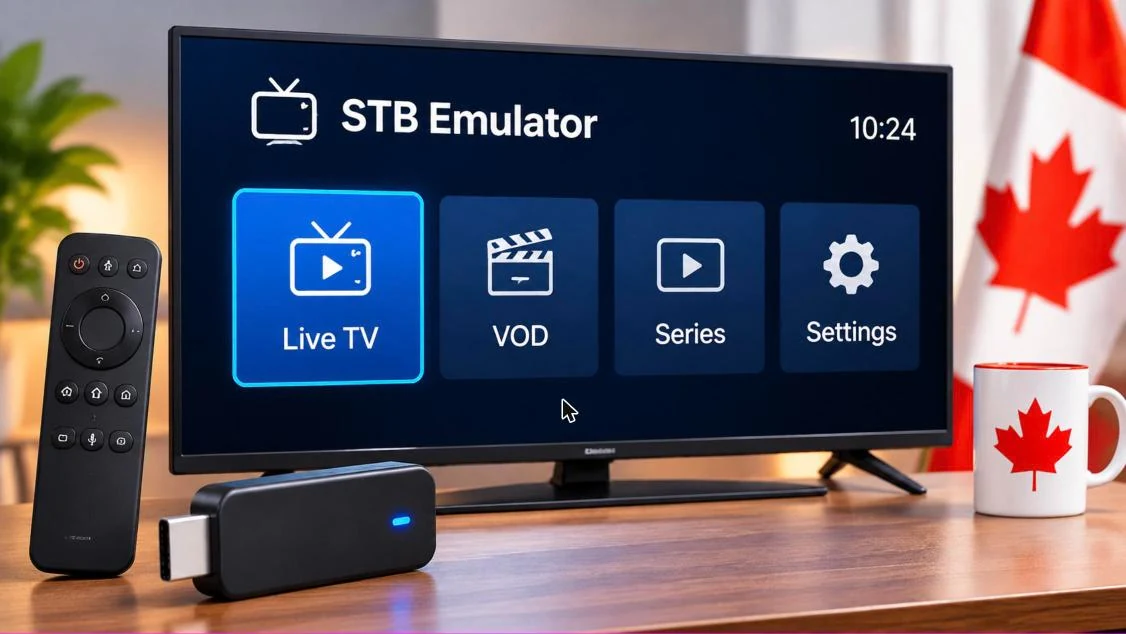
STB Emu (STB Emulator) is an Android app that mimics a MAG set‑top box, letting you watch a portal‑based IPTV service on a phone, Android TV box or Firestick. Instead of an M3U link or Xtream Codes login, it uses the Stalker middleware system: you enter a portal URL and a MAC address that your provider has registered. This guide covers what you need, how to install and configure STB Emu step by step, how to fix the common problems, and when a simpler app might suit you better.
Key takeaways
- STB Emu turns an Android device into a virtual MAG set‑top box, connecting to your provider’s portal.
- You need two things from your provider: a portal URL and a registered MAC address.
- It’s an Android‑only app for phones, Android TV boxes and (sideloaded) Firesticks — expert‑oriented.
- Avoid “free STB Emu codes” — they’re shared, unstable and tied to pirated content. Use your own credentials.
What is STB Emu?
STB Emu emulates the software of a physical MAG box in an app. Portal‑based (Stalker) IPTV services authenticate a device by its MAC address and serve channels through a portal URL, and STB Emu reproduces that handshake on Android. It’s one of three main ways to connect an IPTV service — alongside M3U playlists and Xtream Codes — and it’s the right choice specifically when your provider gives you a portal and MAC rather than a playlist. For the other two methods, see our guide to M3U and Xtream Codes.
What you need before you start
- An Android device — phone, Android TV box, or a Firestick you can sideload onto.
- A portal URL from your IPTV provider.
- A MAC address registered with your provider (STB Emu generates one starting 00:1A:79 that you give the provider, or they supply one).
- A stable internet connection — wired if possible.
How to install STB Emu
On an Android phone or box, you can usually get the app from the Google Play Store; search for STB Emu and install it. On a Firestick, you’ll need to sideload it, since it isn’t in Amazon’s store — first enable installs from unknown sources in the device settings, then use a downloader to install the APK. Note that STB Emu can be buggy on some Firesticks; if you hit trouble there, a mainstream player is often smoother (more on that below). Our Firestick IPTV guide and Android TV box guide cover the device side.
How to set up STB Emu step by step
- Open STB Emu and bring up the menu (on a box, press and hold the OK/select button, or use the settings icon).
- Go to Profiles and create a new profile.
- Open Portal settings and enter the portal URL your provider gave you.
- Open STB Configuration and set the MAC address (the one registered with your provider), choose an STB model such as MAG250, and pick a screen resolution the portal supports (commonly 1280×720).
- Save the profile and restart the app. The channel list should load from the portal.
If it’s your very first IPTV setup, our getting started guide covers the basics first.
A warning about “free STB Emu codes”
Search results are flooded with “free stbemu codes,” portal links and MAC addresses. Avoid them. They’re shared credentials that get overloaded and cut off within days, they’re almost always tied to pirated content, and plugging a random portal into your device carries real security and legal risk. Use the portal and MAC from a provider you pay — read our explainer on licensed vs unlicensed IPTV before using any code you didn’t receive directly.
STB Emu vs M3U and Xtream Codes
STB Emu is the most “expert” of the three connection types and is only needed when your service is portal/MAC based. If your provider also offers an M3U link or Xtream Codes login — most do — a modern player is usually easier to live with day to day, with a cleaner guide and smoother navigation. Use STB Emu when you specifically have a portal and MAC; otherwise consider the alternatives below.
STB Emu alternatives
For most people, a dedicated player is simpler: TiviMate and IPTV Smarters both offer polished interfaces and work with M3U and Xtream Codes. If you’re running genuine MAG hardware rather than emulating it, see our MAG box guide.
Common problems and fixes
- Portal not responding / blank channel list — double‑check the portal URL (including http:// and any path), and confirm your MAC is registered with the provider.
- MAC shows 00:1A:79:00:00:00 — Android couldn’t detect a MAC on a Wi‑Fi‑only device; set one manually and register it with your provider.
- Channels buffer — that’s a connection issue; go wired and see our stop buffering guide.
- Wrong picture size — change the emulated screen resolution to one the portal supports.
- App crashes on Firestick — known bugginess; try a mainstream player instead.
For anything else, our IPTV troubleshooting guide has more fixes.
Tips for best performance
Use a wired Ethernet connection on your main device where you can, keep the app and device software updated, and back up your profile once it’s working so you can restore it quickly if something breaks. Pick the lowest screen resolution that still looks sharp on your TV if you’re on a weaker box — it reduces load and buffering. And give your connection real headroom if several people stream at once.
Is STB Emu legal in Canada?
STB Emu itself is just an app — a tool that emulates set‑top‑box software — and installing it is not illegal. As always with IPTV, legality comes down to the service you point it at, not the player. Connecting STB Emu to a licensed provider’s portal is fine; using it with an unauthorised portal that restreams channels without rights is not, and that’s exactly what the flood of “free” portals and MAC codes online represents. The app’s neutrality is why you’ll find it recommended on both legitimate and questionable sites: the difference is entirely in the credentials you feed it. Treat the portal and MAC the same way you’d treat any login — only use ones issued to you by a provider you actually subscribe to, and keep them private so your line isn’t shared or cut off.
STB Emu on different devices
Performance varies a lot by hardware. On a decent Android TV box with a wired connection, STB Emu is stable and responsive, and the emulated MAG interface will feel familiar to anyone who’s used a physical box. On budget boxes or a Firestick, it can be sluggish or crash‑prone, partly because it’s emulating hardware the device wasn’t designed to mimic. Phones and tablets handle it well for casual viewing but aren’t ideal as a main living‑room setup. If you find STB Emu fighting your device, that’s usually a sign to switch to a native player that was built for the platform rather than forcing the emulation — the channels are the same, and the experience is often smoother. Match the app to your hardware and your connection, and the setup becomes far less fiddly.
Bottom line
STB Emu is the Android way to run a portal/MAC based IPTV service without buying a physical MAG box. The setup is straightforward once you have a portal URL and a registered MAC: install the app, create a profile, enter the portal and MAC, pick an STB model and resolution, and restart. Steer clear of “free codes,” wire your connection, and consider a mainstream player if you also have an M3U or Xtream login. Want to test a service first? TVNow offers a 24‑hour free trial.
Frequently asked questions
What is STB Emu used for?
It emulates a MAG set‑top box on Android, letting you watch a portal/MAC based IPTV service on a phone, Android TV box or Firestick.
What do I need to set up STB Emu?
An Android device, a portal URL from your provider, and a MAC address registered with that provider.
Is STB Emu available on Firestick?
It isn’t in Amazon’s store, so you sideload it after enabling unknown sources. It can be buggy on some Firesticks, where a mainstream player may work better.
Are free STB Emu codes safe?
No. They’re shared, unstable and usually tied to pirated content, with real security and legal risks. Use credentials from a provider you pay.
STB Emu vs TiviMate — which is better?
Use STB Emu only if your service is portal/MAC based. If you have an M3U or Xtream login, TiviMate or IPTV Smarters are easier to use day to day.
Why won’t my STB Emu portal load?
Usually a wrong portal URL or an unregistered MAC address. Re‑enter the portal exactly and confirm your MAC is registered with the provider.







