

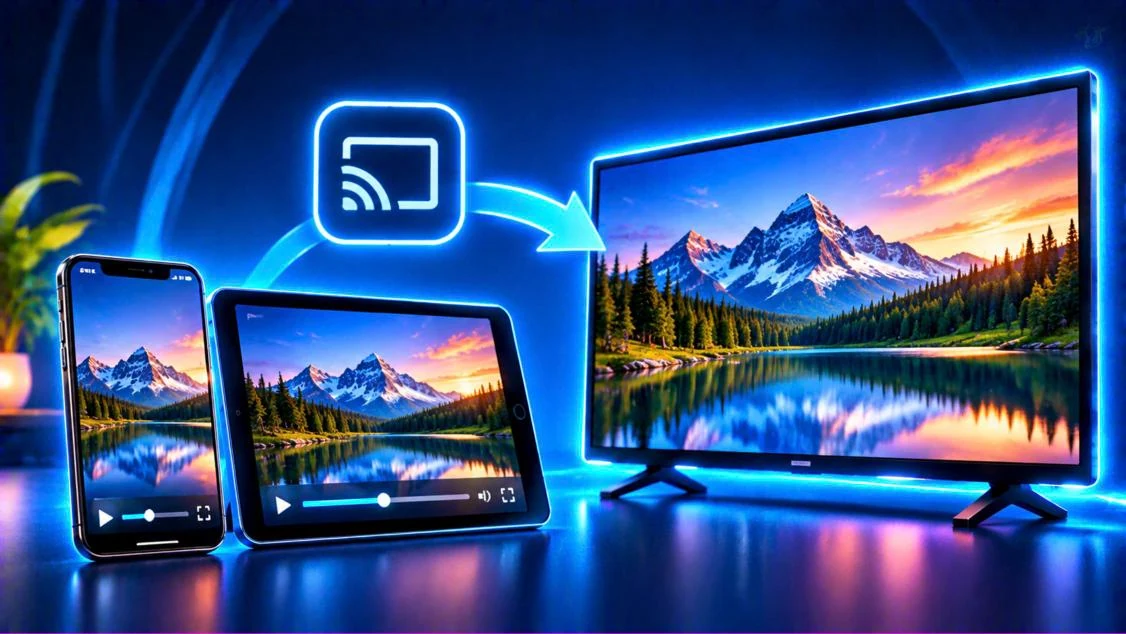
Setting up IPTV on an iPhone or iPad means installing a player app from the App Store, then adding your provider’s Xtream Codes login or M3U URL. Apple’s rules mean there are fewer choices than on Android, but the ones available in 2026 are reliable and handle everything you need — live TV, VOD, series, EPG, and casting to a TV. This guide covers the best iOS apps, step‑by‑step setup, how to watch on your TV, and fixes for common issues.
Key takeaways
- iOS has fewer IPTV apps than Android, but several polished players are on the App Store — GSE Smart IPTV, IPTV Smarters Player Lite and SNPlayer among them.
- Setup is the same in each: install the app, then add your Xtream Codes login or M3U URL.
- Use AirPlay (to Apple TV) or Chromecast to watch on the big screen.
- The apps are free players; your subscription supplies the channels.
Best IPTV apps for iPhone and iPad
A few players dominate on iOS, all supporting M3U and Xtream Codes with a full EPG:
- GSE Smart IPTV — a long‑standing, reliable choice across iPhone and iPad.
- IPTV Smarters Player Lite — the iOS version of the popular Smarters player.
- SNPlayer — a modern, free player with AirPlay, Chromecast and picture‑in‑picture.
Any of these works well; pick one and stick with it. For a fuller rundown see our guide to the top iPhone IPTV apps.
What you need before you start
- An iPhone or iPad on a recent iOS version.
- Your IPTV login — Xtream Codes (server, username, password) or an M3U URL.
- A stable internet connection; Wi‑Fi 5 GHz or better for HD/4K.
Not sure which login you have? See our guide to M3U and Xtream Codes.
How to set up IPTV on iPhone or iPad
- Install a player — open the App Store, search for GSE Smart IPTV (or your chosen app) and install it.
- Open the app and accept the terms.
- Add your source — choose Xtream Codes login and enter a name, the server URL, username and password; or choose the M3U URL option and paste your playlist link.
- Load and wait for channels, VOD and series to populate.
- Open Live TV and start watching; the EPG should fill in automatically with an Xtream login.
New to IPTV entirely? Start with our getting started guide.
How to watch on your TV (AirPlay and Chromecast)
Your iPhone or iPad is great for watching on the go, but you can also push the picture to a TV. With an Apple TV, use AirPlay from the app or Control Centre. With a Chromecast or Chromecast‑built‑in TV, use the app’s cast button. If you’d rather install IPTV directly on the big screen, see our Apple TV guide and Chromecast guide.
Features worth knowing
- EPG — a full program guide, automatic with Xtream logins.
- Picture‑in‑picture — keep watching while using other apps.
- AirPlay and Chromecast — cast to a TV.
- Parental controls — lock categories or channels.
- Multiple playlists — manage more than one subscription in one app.
A note on “free” IPTV apps and playlists
The player apps themselves are free (often with in‑app purchases), which is fine. What to avoid are “free” playlists and shared codes floating around online — they’re unstable and usually tied to pirated content. Only enter a login your provider issued you, and read our explainer on licensed vs unlicensed IPTV before using any random playlist.
Common problems and fixes
- Won’t log in — re‑check the server URL (with http:// and port), username and password; don’t paste an M3U link into Xtream fields.
- No channels — confirm the playlist URL is correct and your subscription is active.
- Empty guide — add the EPG URL, or use the Xtream login which usually includes it.
- Buffering — move closer to the router or switch to 5 GHz Wi‑Fi; see our stop buffering guide.
- Casting drops — keep the phone and TV on the same network and close background apps.
More help is in our IPTV troubleshooting guide.
Getting the best performance on iOS
Live TV is demanding, so a few habits help on a phone or tablet. Stay on a strong Wi‑Fi signal — ideally the 5 GHz band — and avoid streaming from a far corner of the house on 2.4 GHz. Close other apps that use bandwidth in the background, and if you’re casting to a TV, make sure both devices are on the same network to avoid drops. On cellular, HD will work on a good signal but will use significant data, so check our guide to IPTV data usage if you’re not on Wi‑Fi. For long viewing sessions, keep the device plugged in, since live video drains the battery quickly.
Is IPTV on iPhone legal?
The player apps are legitimate App Store downloads, and installing them is perfectly legal. As always, legality depends on the service you connect to — a licensed provider is fine, while an unlicensed one that restreams channels without rights is not. The app is just a window onto whatever subscription you point it at.
iPhone vs iPad for IPTV
Both run the same apps, so the choice comes down to how and where you watch. The iPad’s larger, higher‑resolution screen makes it the better solo‑viewing device — a good iPad handles full HD and even 4K content beautifully, and it doubles as a portable TV around the house. The iPhone wins on convenience: it’s always with you, ideal for catching a game or the news on the move, and it slips easily into a casting setup where the phone is just the remote and the TV does the viewing. Battery and data are the practical trade‑offs: the iPad’s bigger battery lasts longer through a match, while the iPhone is more likely to be on cellular, where live video eats data quickly. Many households use both — the iPad as a second screen in the kitchen or bedroom, the iPhone for quick, on‑the‑go viewing — and because your subscription supports multiple devices, the same login works across them.
Keeping IPTV smooth day to day on iOS
A little maintenance keeps the experience reliable. Keep the player app and iOS itself updated, since updates fix playback bugs and security issues. If an app starts misbehaving, fully closing and reopening it clears most temporary glitches, and reloading the playlist refreshes the channel list after your provider makes changes. Picture‑in‑picture is worth enabling if you like to keep an eye on a game while messaging or browsing. And if you regularly cast to a TV, a quick router restart now and then keeps the local network tidy and reduces dropped connections. None of this is complicated, but these small habits are the difference between an IPTV setup that “just works” on your Apple devices and one that feels flaky — and they matter far more than which specific player you chose, since the top iOS apps are all capable once configured correctly.
Bottom line
IPTV on iPhone and iPad is straightforward: install a reliable player like GSE Smart IPTV, IPTV Smarters Player Lite or SNPlayer, add your Xtream Codes or M3U details, and you’re watching in minutes. Use AirPlay or Chromecast for the TV, stay on strong Wi‑Fi, and only use a login from a provider you trust. To test streaming on your own device, TVNow offers a 24‑hour free trial that works in any of these apps.
Frequently asked questions
What’s the best IPTV app for iPhone and iPad?
GSE Smart IPTV, IPTV Smarters Player Lite and SNPlayer are among the most reliable iOS players, all supporting M3U and Xtream Codes with a full EPG.
How do I set up IPTV on my iPhone?
Install a player from the App Store, then add your Xtream Codes login (server, username, password) or paste your M3U URL and let the channels load.
Can I watch IPTV from my iPhone on my TV?
Yes. Use AirPlay to an Apple TV, or the cast button to a Chromecast or Chromecast‑built‑in TV.
Are iOS IPTV apps free?
The player apps are generally free, sometimes with in‑app purchases. Your IPTV subscription, which supplies the channels, is separate.
Why does IPTV buffer on my iPad?
Usually a weak Wi‑Fi signal. Move closer to the router, use the 5 GHz band, and close background apps that use bandwidth.
Is IPTV on iPhone legal in Canada?
The apps are legal to install. Legality depends on the service you connect to — a licensed provider is fine; an unlicensed one is not.







